
Description
Two WhatsApp Tools in One WordPress Plugin
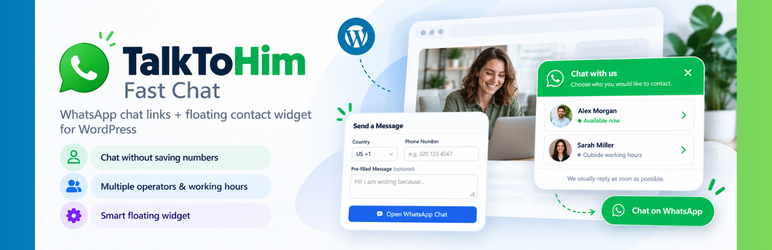
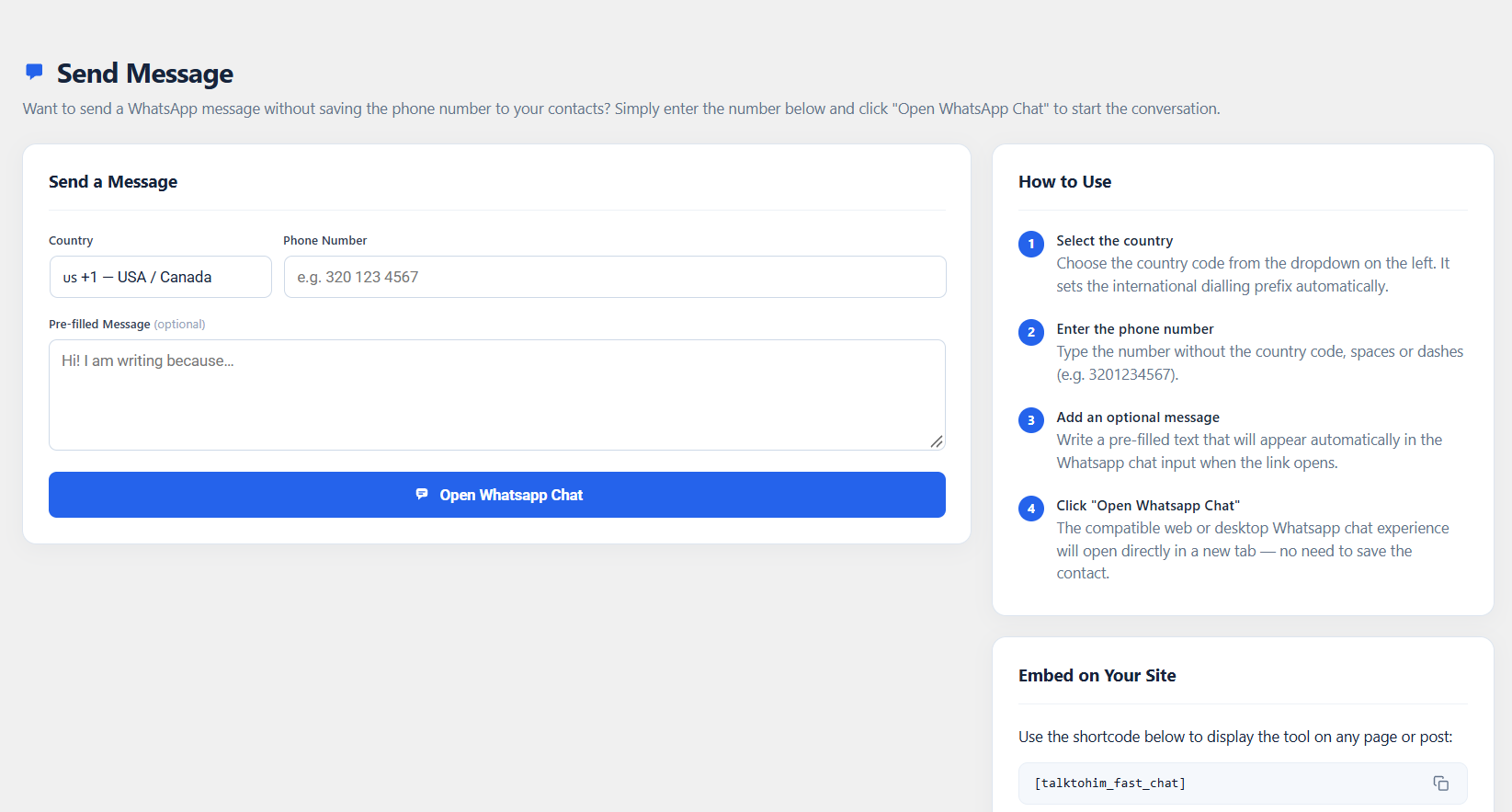
Chat without saving phone numbers. Enter any phone number, add an optional message and click Open WhatsApp Chat to start a conversation without first adding the number to your contacts.
Add a customizable floating WhatsApp contact widget. Give visitors a quick way to contact you, or let them choose from multiple operators with individual numbers, roles, photos and working hours.
Adjust the widget’s button, popup, visibility and opening behavior from your WordPress dashboard. The plugin opens WhatsApp chat links; it does not send messages automatically.
Choose Single Contact with your name and number, or an Operator Team with photos, roles and working hours. No WhatsApp Business API or paid subscription is required.
TalkToHim opens standard wa.me links; it does not send messages automatically or provide an inbox.
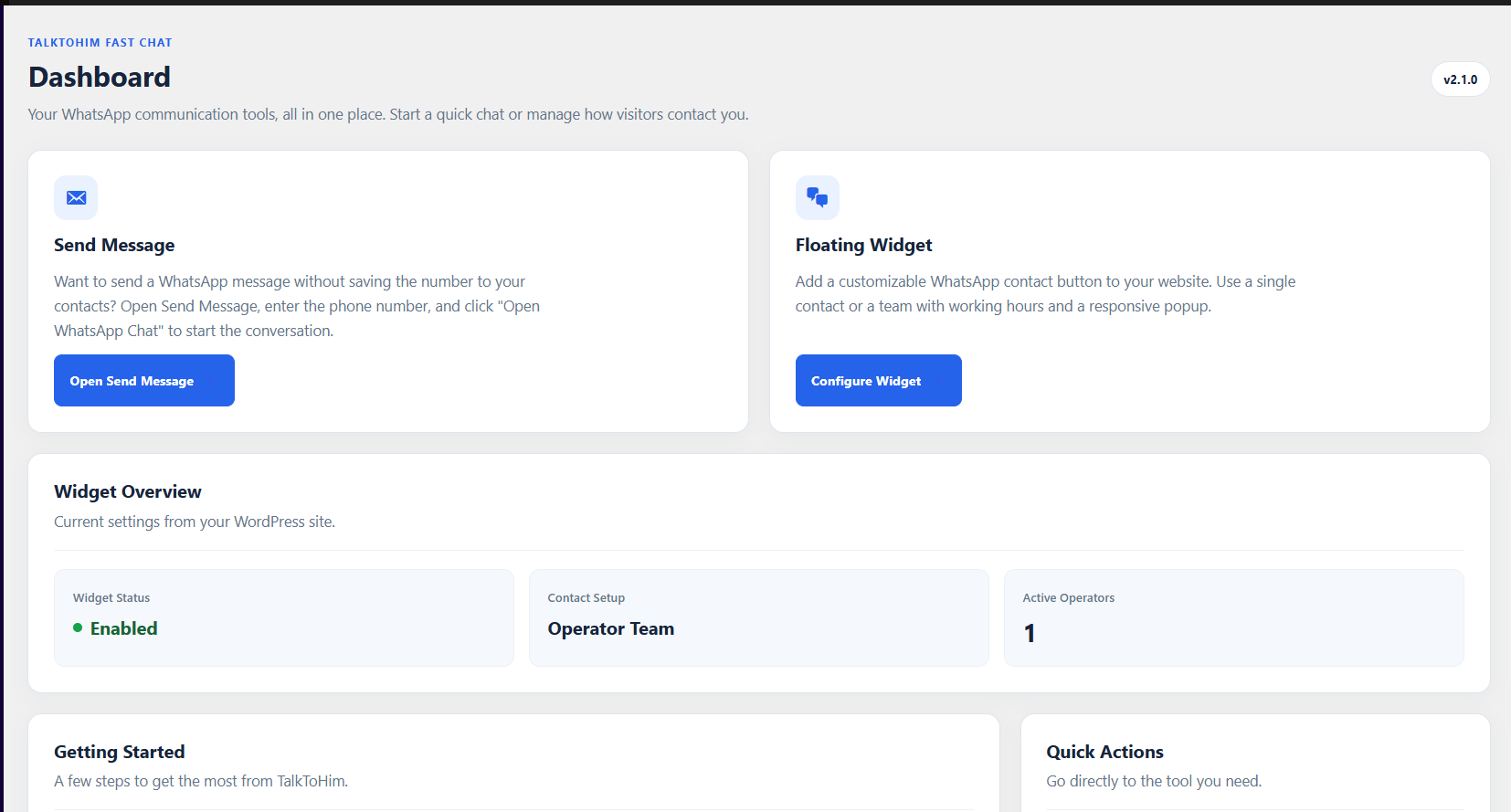
The WordPress admin Dashboard introduces both tools, shows the current widget setup status, and provides shortcuts for configuration and operator management.
WhatsApp Chat Link Generator
- Chat without saving contacts — enter a phone number and open a WhatsApp conversation without adding the number to your address book.
- WordPress admin tool — access the generator directly from the WordPress dashboard.
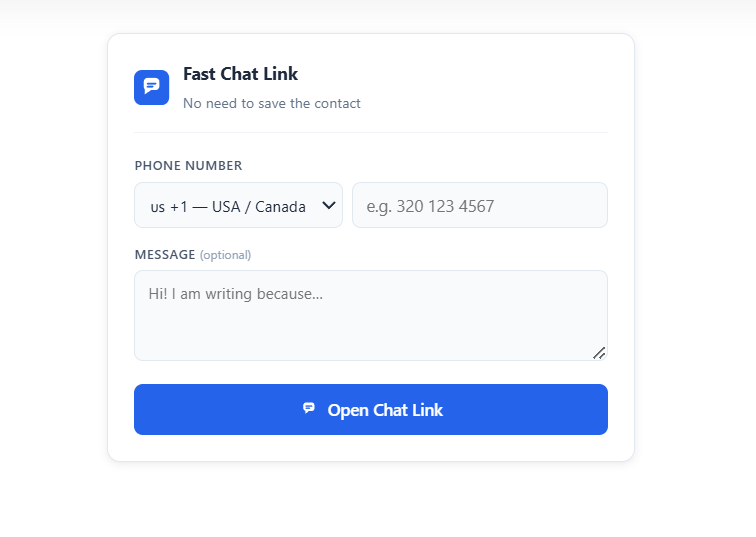
- Shortcode support — embed the generator in a page, post or widget area with
[talktohim_fast_chat]. - 30+ country prefixes — choose from country names and flag emojis.
- Pre-filled messages — prepare a message before opening WhatsApp.
- Recent numbers — quickly reuse up to 10 recent numbers stored locally in the administrator’s browser.
Floating WhatsApp Contact Widget
- Single Contact setup — use one WhatsApp number with a custom display name and optional role, without creating an operator.
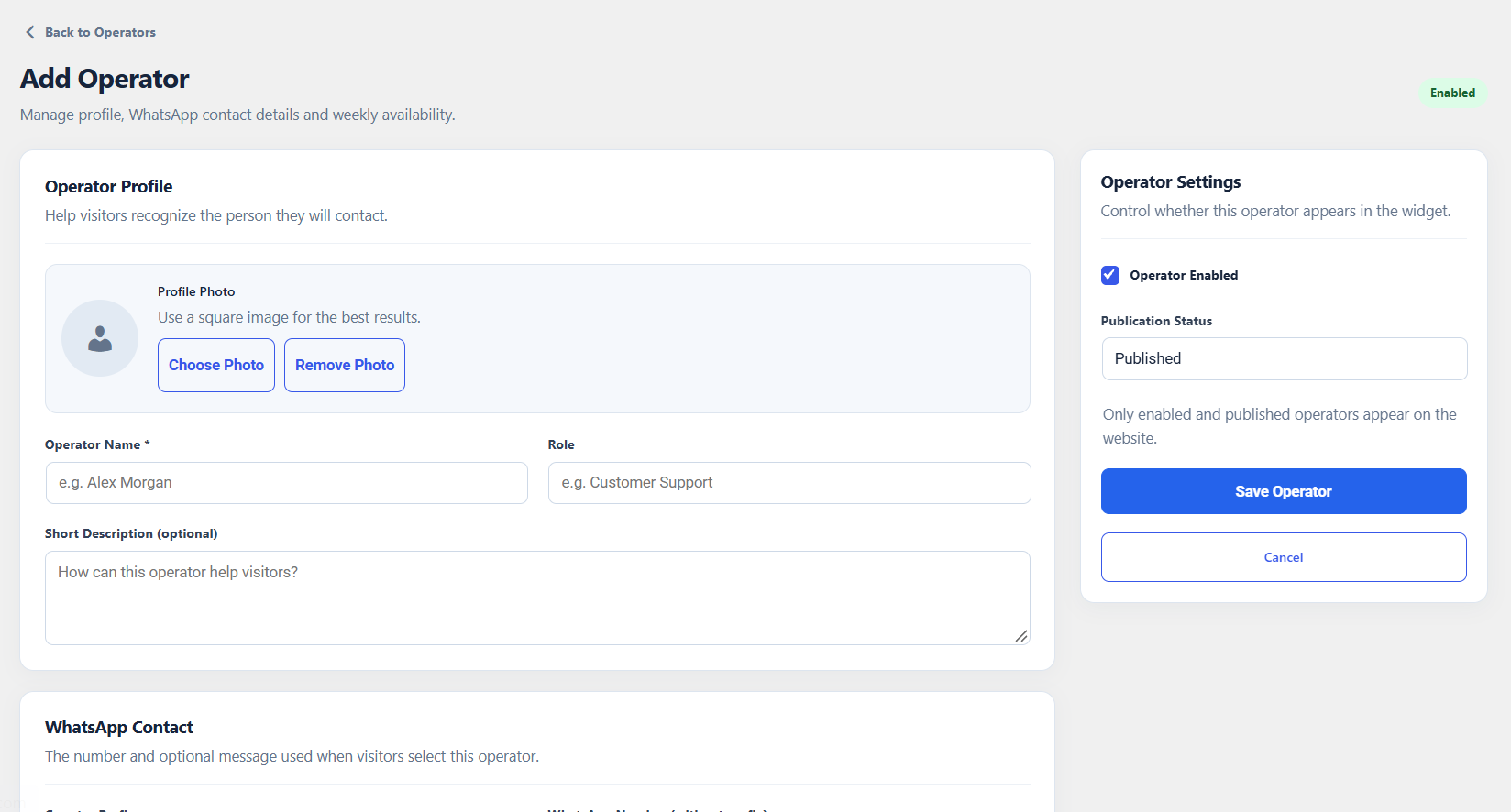
- Operator Team setup — add multiple contacts with photos, roles, individual WhatsApp numbers, messages and working hours.
- Smart Mode — use a direct chat link for a single contact or show a contact selection popup for multiple operators.
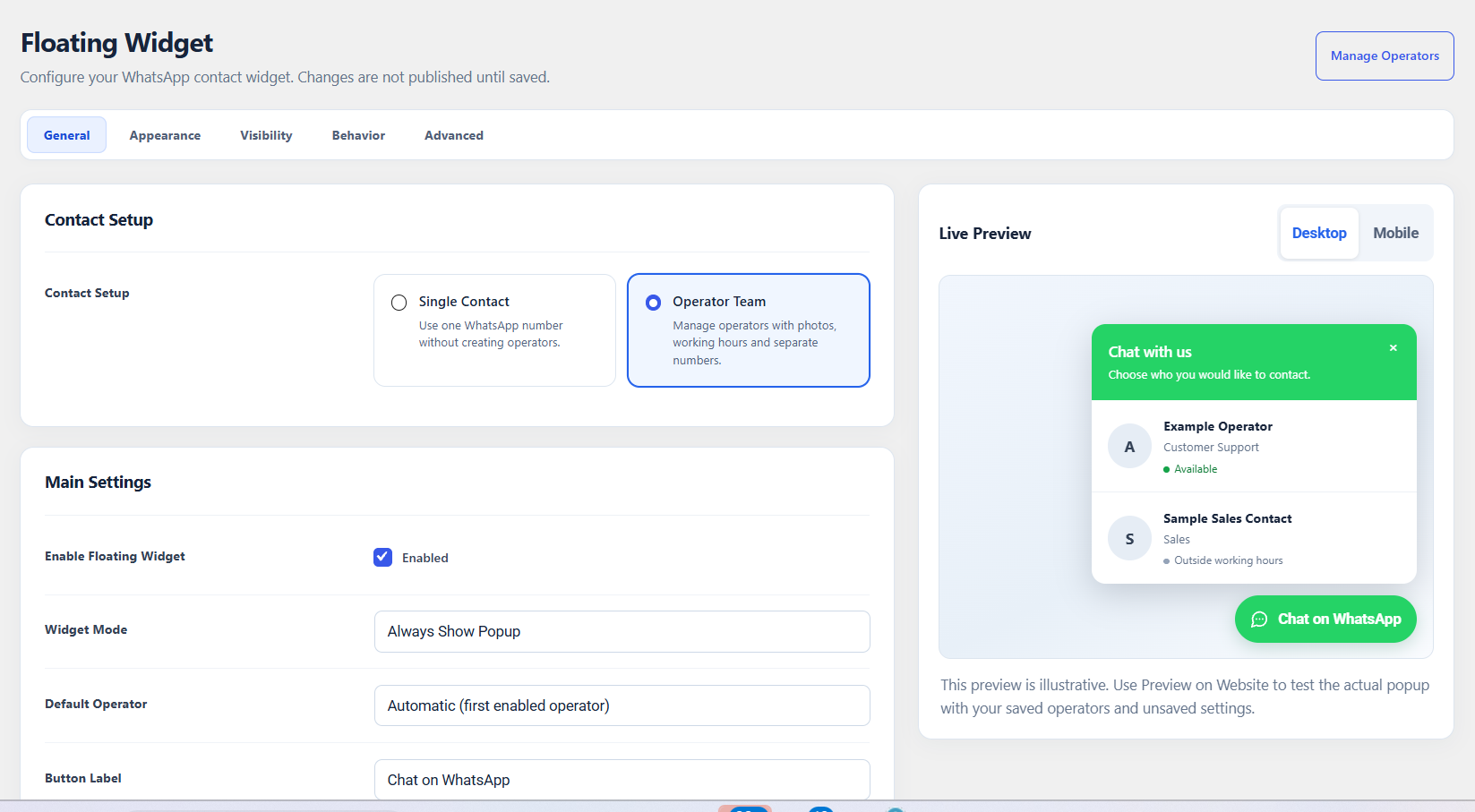
- Manual opening modes — choose Smart Mode, Always Show Popup or Direct WhatsApp Link.
- Working hours — configure different hours and multiple time ranges for each operator on each day of the week.
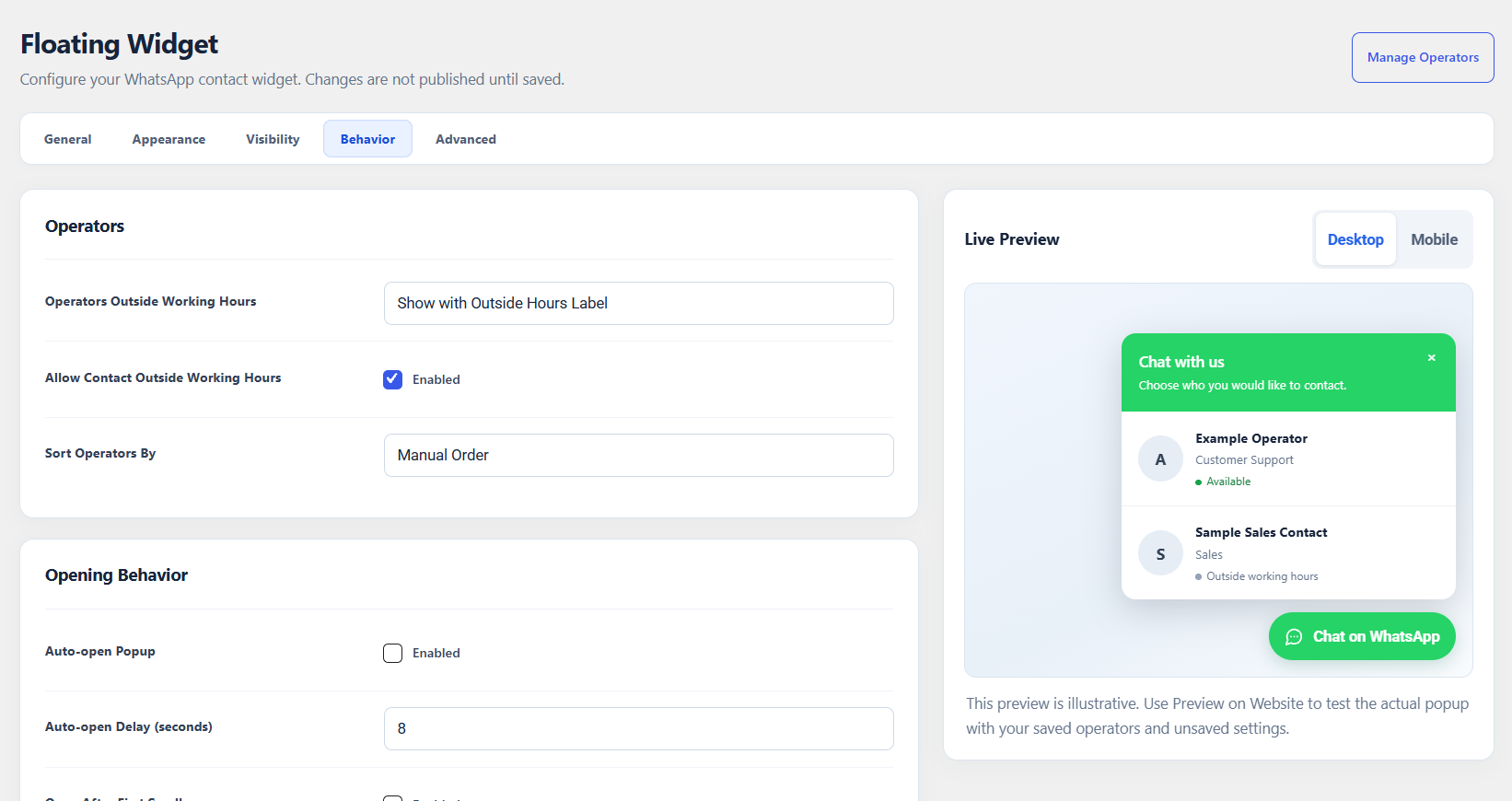
- Outside-hours behavior — show or hide operators outside their configured working hours and optionally use a primary contact as a fallback.
- Customizable availability labels — edit the visitor-facing Available now and Outside working hours messages to suit your language.
- Optional primary contact in team mode — include your main contact alongside operators when needed.
- Responsive design — a compact popup above the floating button on desktop and mobile, keeping the button accessible.
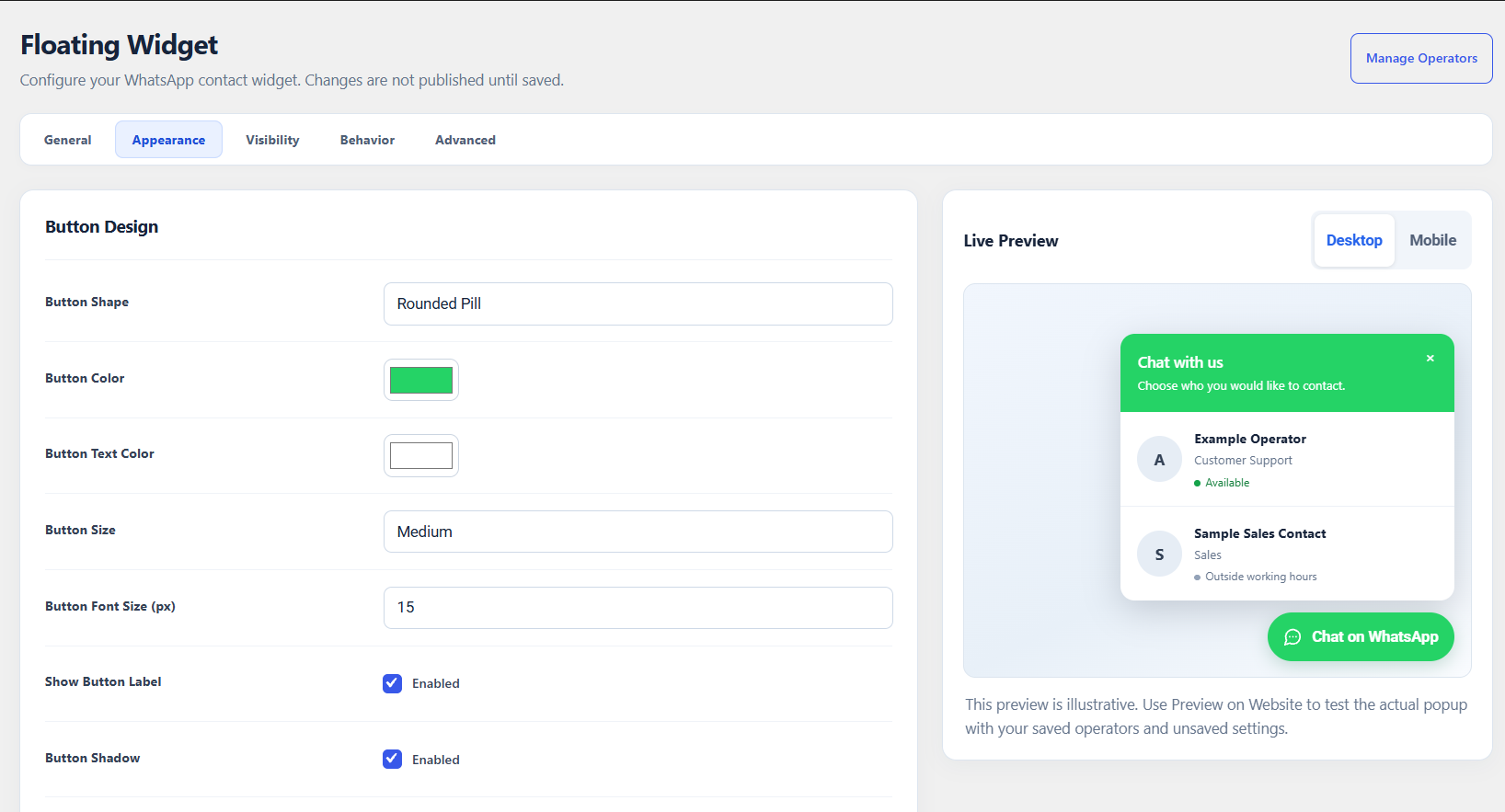
- Button customization — rounded pill, rounded rectangle or icon-only circle, with customizable colors, size, label and position.
- Optional external label — show a clickable, customizable message beside the icon-only circle button.
- High-contrast pulse effect — an optional attention ring remains visible on light and dark page backgrounds.
- Desktop and mobile controls — independently configure visibility and distance from screen edges.
- Page and post targeting — include or exclude individual pages and posts, as well as content types.
- Dynamic messages — personalize chat text with website, page and operator placeholders.
- Live preview — view changes in the admin area and test unsaved settings privately with Preview on Website.
- Five organized settings tabs — General, Appearance, Visibility, Behavior and Advanced.
- Per-tab reset — restore settings in the current tab to their defaults with confirmation.
Choose Your Contact Setup
Single Contact: Enter a display name, country prefix and number under TalkToHim Floating Widget General. Open WhatsApp directly or display your contact details in a popup without creating an operator.
Operator Team: Add contacts under TalkToHim Operators. Each operator can have a number, role, photo and individual weekly schedule.
In team mode, optionally show the main contact alongside operators or use it as a fallback.
Smart Mode and Availability
Smart Mode chooses a direct link or popup based on your contact setup. Override it with Always Show Popup or Direct WhatsApp Link.
Show or hide operators outside working hours. Customize the Available Status Text and Outside Working Hours Text under Floating Widget Behavior for your visitors. Availability reflects configured schedules, not real-time WhatsApp online status.
Customization and Visibility
Adjust appearance, placement, page/post targeting and opening behavior from five settings tabs. Under Appearance, enable External Button Label for an Icon-only Circle and customize the visitor-facing message. Under Behavior, enable Button Pulse Effect for a visible attention ring on light or dark backgrounds.
Preview on Website tests unsaved changes privately. Reset to Defaults restores only the current tab after confirmation.
Dynamic Message Placeholders
Use these placeholders in supported pre-filled widget messages:
{site_name}— website name{page_title}— current page title{page_url}— current page URL{operator_name}— selected operator’s name{operator_role}— selected operator’s role
Example:
Hello! I found your contact on {site_name}, on the page {page_title}: {page_url}
Shortcode Usage
Embed the chat link generator:
[talktohim_fast_chat]
Set a custom country prefix and message:
[talktohim_fast_chat prefix="39" message="Hello! I found your number on the website."]
Privacy and External Service
TalkToHim does not transmit contact information to the plugin author’s servers.
Recent admin numbers are stored in the browser’s localStorage. The shortcode uses no cookies or browser storage; optional popup auto-open frequency uses session storage.
Clicking a chat link opens a WhatsApp (wa.me) URL with the phone number and optional message. WhatsApp is an external service; the plugin does not send the message. Review your site’s privacy requirements.
Widget styles may load from a same-site WordPress AJAX stylesheet endpoint. No WhatsApp Business API is required.
Screenshots



Installation
- Install TalkToHim Fast Chat through Plugins Add New, or upload the
talktohim-fast-chatfolder to/wp-content/plugins/. - Activate the plugin.
- Open TalkToHim Dashboard to see an overview of the plugin and its tools.
- Open TalkToHim Send Message to use the chat link generator.
- Open TalkToHim Floating Widget to enable the floating contact button.
- Under General, choose Single Contact or Operator Team.
- For a team, add contacts and working hours under TalkToHim Operators.
- Customize the widget and click Save Changes. Use Preview on Website to test changes before saving.
FAQ
-
Can I use the widget without creating an operator?
-
Yes. Use Single Contact with your name and number, without creating an operator.
-
Can I add multiple WhatsApp operators?
-
Yes. Operator Team supports photos, roles, numbers, messages and custom working hours.
-
What happens if I configure both a main number and operators?
-
Operators are used by default. Optionally show the primary contact in the popup or use it as a fallback.
-
What is Smart Mode?
-
It selects direct chat or popup based on your setup. You can override this manually.
-
Does the plugin detect whether an operator is online?
-
No. Availability is based on configured working hours.
-
Can I choose where the widget appears?
-
Yes. Target pages, posts or post types and configure desktop/mobile visibility and offsets.
-
Yes. Choose colors, shape, label, size, popup appearance and position.
-
Can visitors use the chat link generator?
-
Yes. Use
[talktohim_fast_chat]on a page or post. -
Do I need the WhatsApp Business API or a paid service?
-
No. The plugin uses chat links; it does not provide an inbox or automated messaging.
-
Do I need to save a phone number before contacting it?
-
No. You can open a chat link without saving the phone number as a contact.
-
Does it work on mobile and desktop?
-
Yes, via WhatsApp on mobile, web or desktop where supported.
-
No. Clicking a link redirects the visitor to WhatsApp, a separate service.
Reviews
There are no reviews for this plugin.
Contributors & Developers
“TalkToHim Fast Chat” is open source software. The following people have contributed to this plugin.
Contributors
Translate “TalkToHim Fast Chat” into your language.
Interested in development?
Browse the code, check out the SVN repository, or subscribe to the development log by RSS.
Changelog
2.1.3
- Added an optional customizable external label beside the Icon-only Circle floating button, with the same click behavior as the button.
- Improved the optional Button Pulse Effect with a high-contrast ring on light and dark backgrounds.
2.1.2
- Added customizable availability status text for operators in the Floating Widget Behavior tab, including support for other languages.
- Replaced the outbound operator-card arrow with a locally bundled WhatsApp destination icon.
- Preserved the generic chat icon on the floating button and popup header, existing settings and contact behavior.
2.1.1
- Isolated the floating contact widget from theme and page-builder styles to prevent oversized popups, unintended spacing and altered text or icons.
- Preserved contact routing, responsive layout, appearance settings and existing widget configuration.
2.1.0
- Added a dedicated plugin Dashboard with an overview of Quick Chat and Floating Widget.
- Added contextual widget status, setup guidance, and shortcuts to the plugin tools.
- Unified the administration design of Send Message and Settings with the Floating Widget interface.
- Organized the WordPress submenu into Dashboard, Send Message, Floating Widget, Operators and Settings.
- Preserved chat-link generation, the shortcode, widget options, operator data and existing front-end behavior.
2.0.1
- Replaced the telephone handset with a generic Lucide chat icon in the floating button, popup header and admin live preview.
- Kept existing widget shapes, colors, layout and contact behavior unchanged.
2.0.0
- Added Single Contact and Operator Team setup options, including customizable primary contact name and role.
- Added operator profiles with dedicated phone numbers, photos, roles and personalized daily working-hour ranges.
- Added Smart Mode, multi-operator contact popup and responsive mobile bottom sheet.
- Added optional primary contact inclusion and fallback behavior for team setups.
- Added five Floating Widget settings tabs with advanced appearance, targeting and behavior controls.
- Added search-and-add selection for individual pages, posts and post types.
- Added administrator-only preview of unsaved widget settings and per-tab reset confirmation.
- Added operator message placeholders and working-hour availability messages.
- Updated the WordPress administration interface and widget styling.
- Preserved existing settings, chat generator and shortcode compatibility.
1.1.0
- Added a dedicated Floating Widget admin page.
- Added a floating WhatsApp contact widget for site-wide visitor communication.
- Added customizable widget color with green as the default.
- Added configurable phone number, message, label, position and display mode.
- Added mobile and desktop visibility controls.
- Added support for dynamic placeholders in widget messages.
1.0.1
- Improved wording and descriptions for better clarity.
- Added clearer references to WhatsApp compatibility.
1.0.0
- Initial release.